Introduction to VCCMS
VCCMS (Vocational Competency Content Management System) is a compliance-grade curriculum management platform purpose-built for Australian Registered Training Organisations delivering nationally recognised training under the AQF.
ASQA audits can shut down an RTO. Most RTOs currently manage compliance in spreadsheets and shared drives — a fragmented, error-prone approach. VCCMS replaces that entirely: every unit has a compliance score, every trainer credential is tracked, every validation event is timestamped, every TGA change is detected and shown as a detailed comparison. One-click audit pack.
1.1 What VCCMS Does
| Feature | Description |
|---|---|
| Compliance Governance | Every unit carries a live score across 12 compliance indicators. Alerts fire when credentials expire or validation deadlines pass. |
| Version Control | Two-track versioning detects TGA regulatory changes (Track 1) and enrichment updates (Track 2). Colour-coded diffs show exactly what changed. |
| Evidence Mapping | Central evidence library linked to units, with expiry tracking and one-click ASQA audit export. |
| Curriculum Authoring | AI-assisted enrichment for every Performance Criteria — explanations, industry examples, workplace scenarios, and quality coaching. |
| Learner Delivery | Moodle plugin displays enriched units with tabs, progress tracking, bookmarks, personal notes, quizzes, and exercises. |
| Document Management | LAG, TAS, and Session Plans authored in the Builder with AI assistance and delivered via Moodle modal popups. |
1.2 Two-Component Architecture
VCCMS has two distinct components. The Builder is where content is created and governed. The Moodle plugin is where students and teachers consume that content.
- Import units from TGA (training.gov.au)
- Author enrichment content with AI assistance
- Manage compliance, trainers, and evidence
- Author LAG, TAS, and Session Plans
- Expose all content via versioned REST API
- Display enriched units to students
- Tab and accordion layouts with colour themes
- Progress tracking and Moodle completion
- Bookmarks, notes, quizzes, and exercises
- LAG / TAS / Session Plan modal buttons
1.3 User Roles
| Role | System | Key Capabilities |
|---|---|---|
| Curriculum Developer | Builder | Import units, author enrichment, manage workflow, submit for approval, author LAGs and session plans, use AI tools. |
| RTO Administrator | Builder | All developer permissions plus: approve content, manage users, export audit packages, configure API keys, approve all documents. |
| Teacher / Trainer | Moodle | Create courses, add VCCMS activities, select elements/PCs, configure layout and theme, monitor student progress. |
| Student / Learner | Moodle | View unit content, use bookmarks and personal notes, complete quizzes and exercises, track own progress. |
VCCMS Builder — Getting Started
The VCCMS Builder is a standalone web application accessed via your browser. It is completely independent of Moodle. Curriculum developers and administrators use it to author all content, manage compliance, and govern the platform.
2.1 Logging In
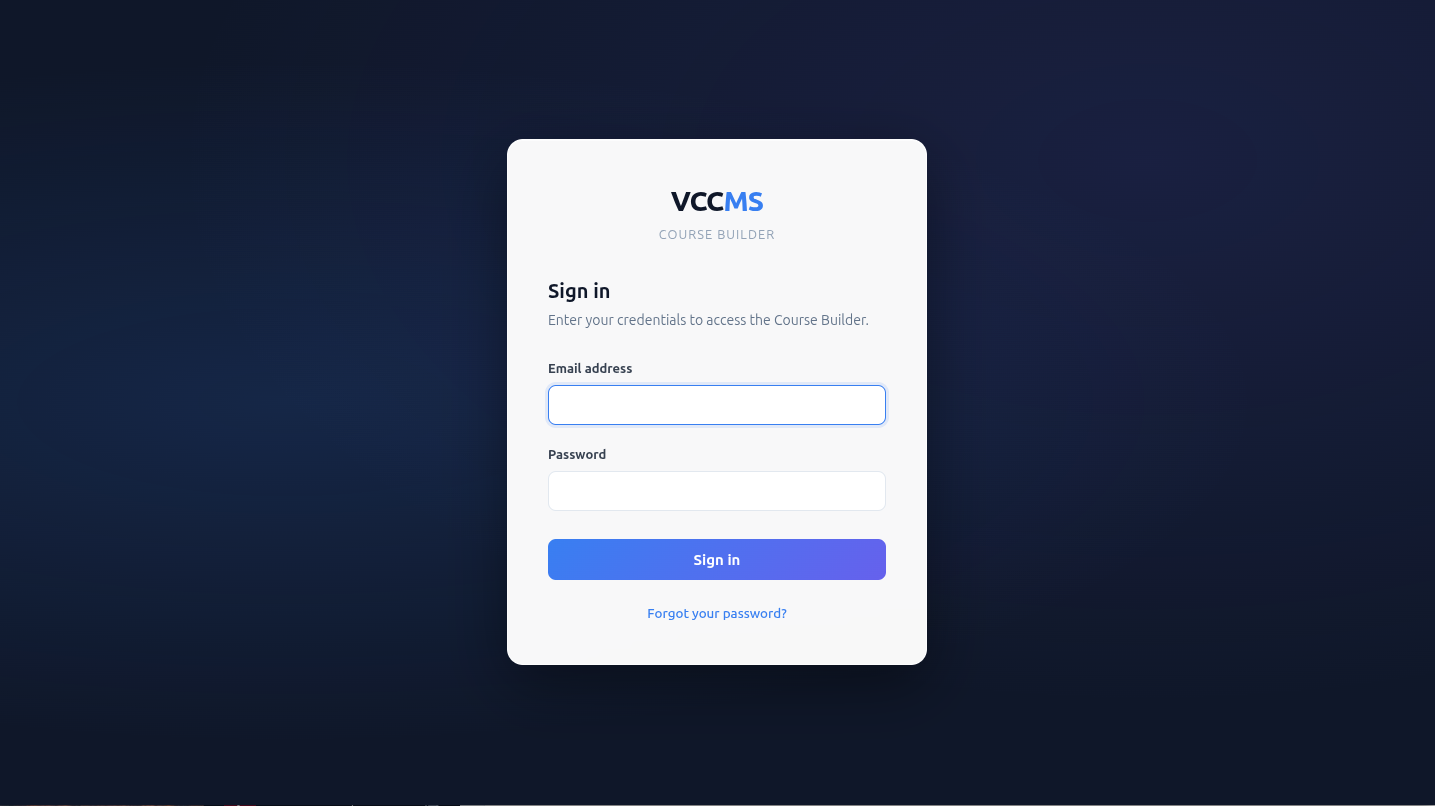
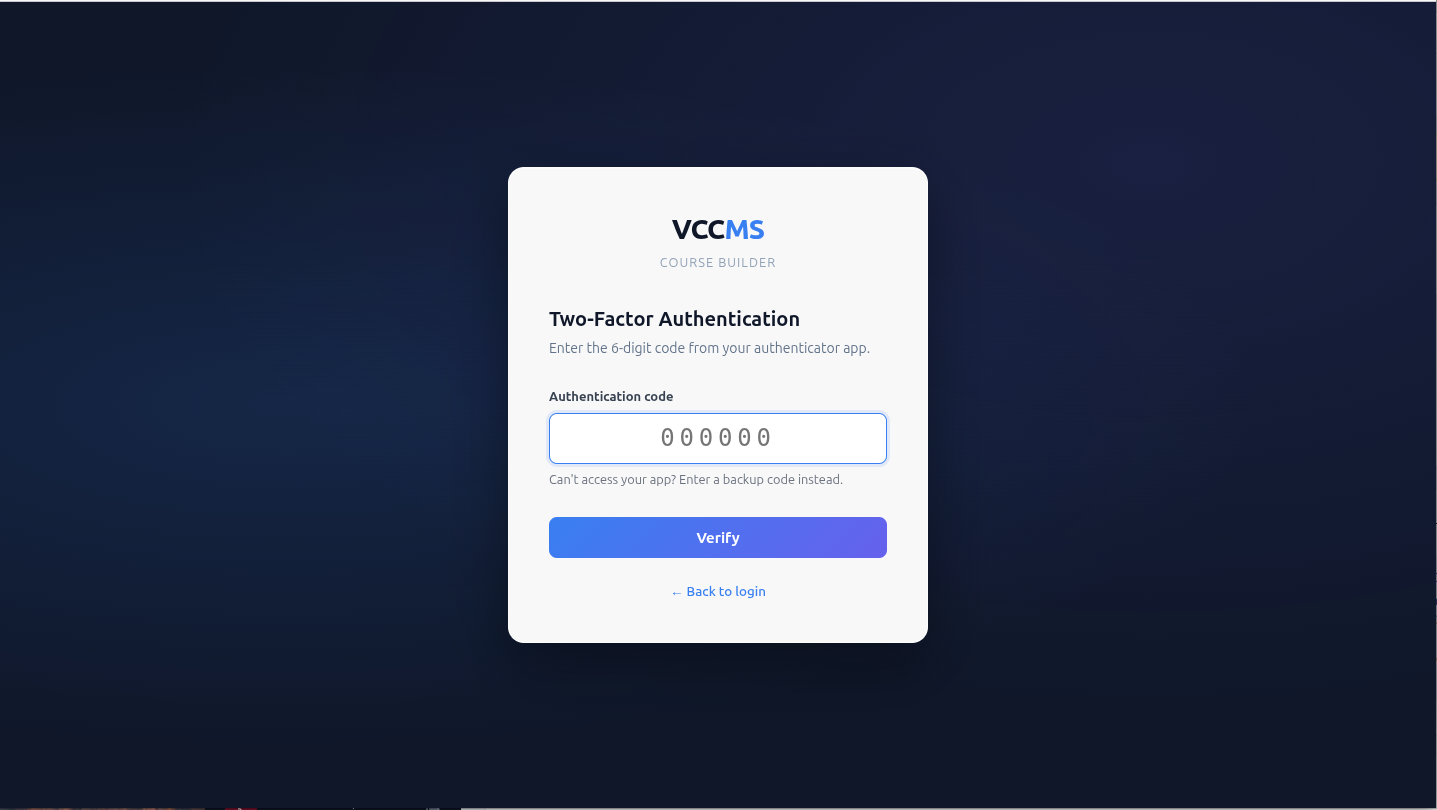
- Navigate to your Builder URL (e.g.
vccms-builder.yourrto.edu.au) - Enter your email address and password
- Click Sign In — the Dashboard loads immediately
2.2 The Dashboard
After login, the Dashboard shows a live overview of your RTO's curriculum health with real-time statistics.
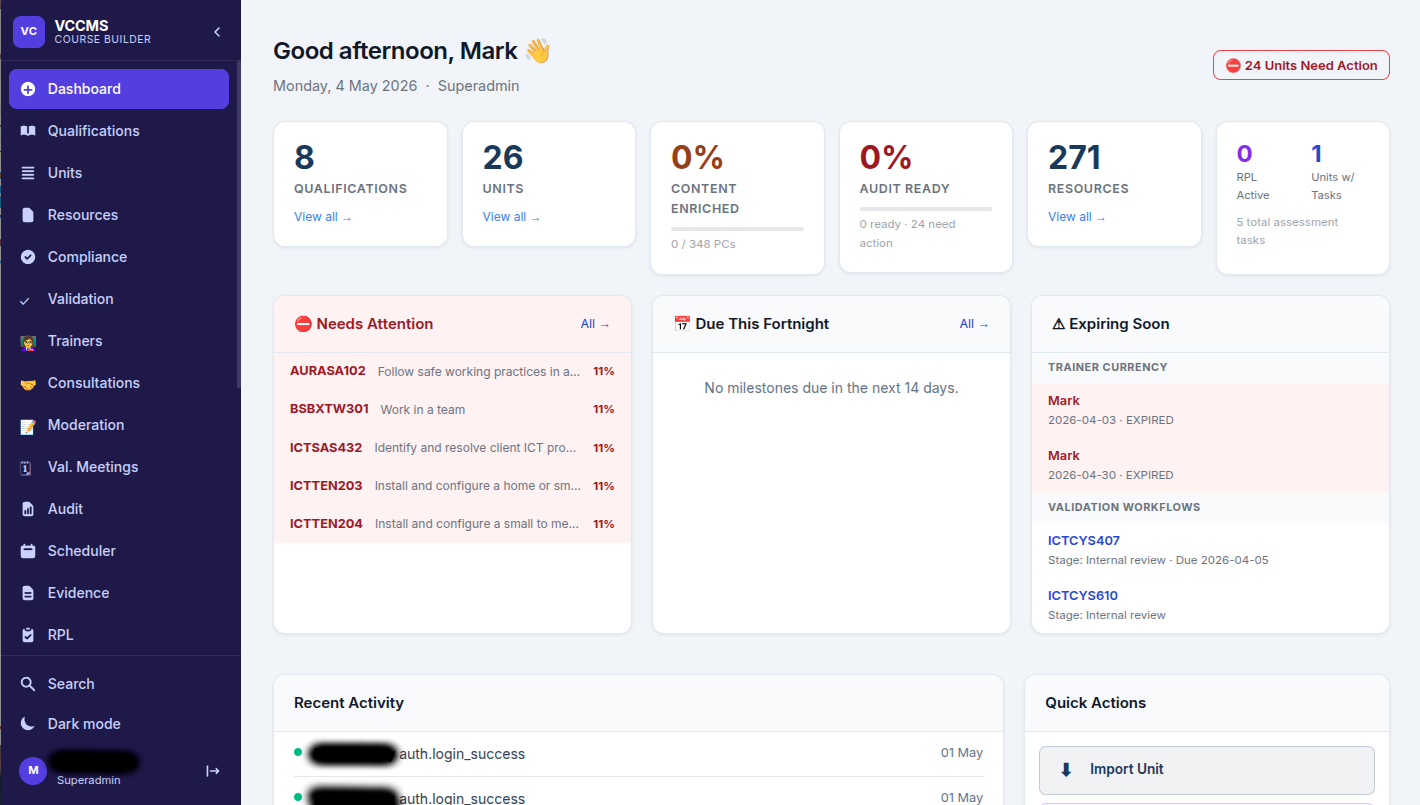
| Widget | Description |
|---|---|
| Enrichment % | Percentage of PCs across all units with approved enrichment content in all five fields. |
| Compliance % | Average compliance score across all active units, based on 12 compliance indicators. |
| Expiring Credentials | Trainer currency evidence expiring within 60 days. Click to view affected trainers. |
| Milestones | Upcoming cohort delivery milestones due within the next 30 days. |
| Validation Workflows | Units progressing through the 3-stage validation pipeline that need attention. |
| Activity Feed | Recent actions by all Builder users — publications, approvals, imports, and key events. |
Working with Units of Competency
3.1 Importing a Qualification
- Click Qualifications in the top navigation
- Click Import Qualification
- Enter the qualification code (e.g.
ICT50220) or keywords, then click Search - Select the qualification from the results and click Import
- VCCMS fetches all units and Performance Criteria from the TGA API automatically
3.2 The Units List

3.3 The Unit Page
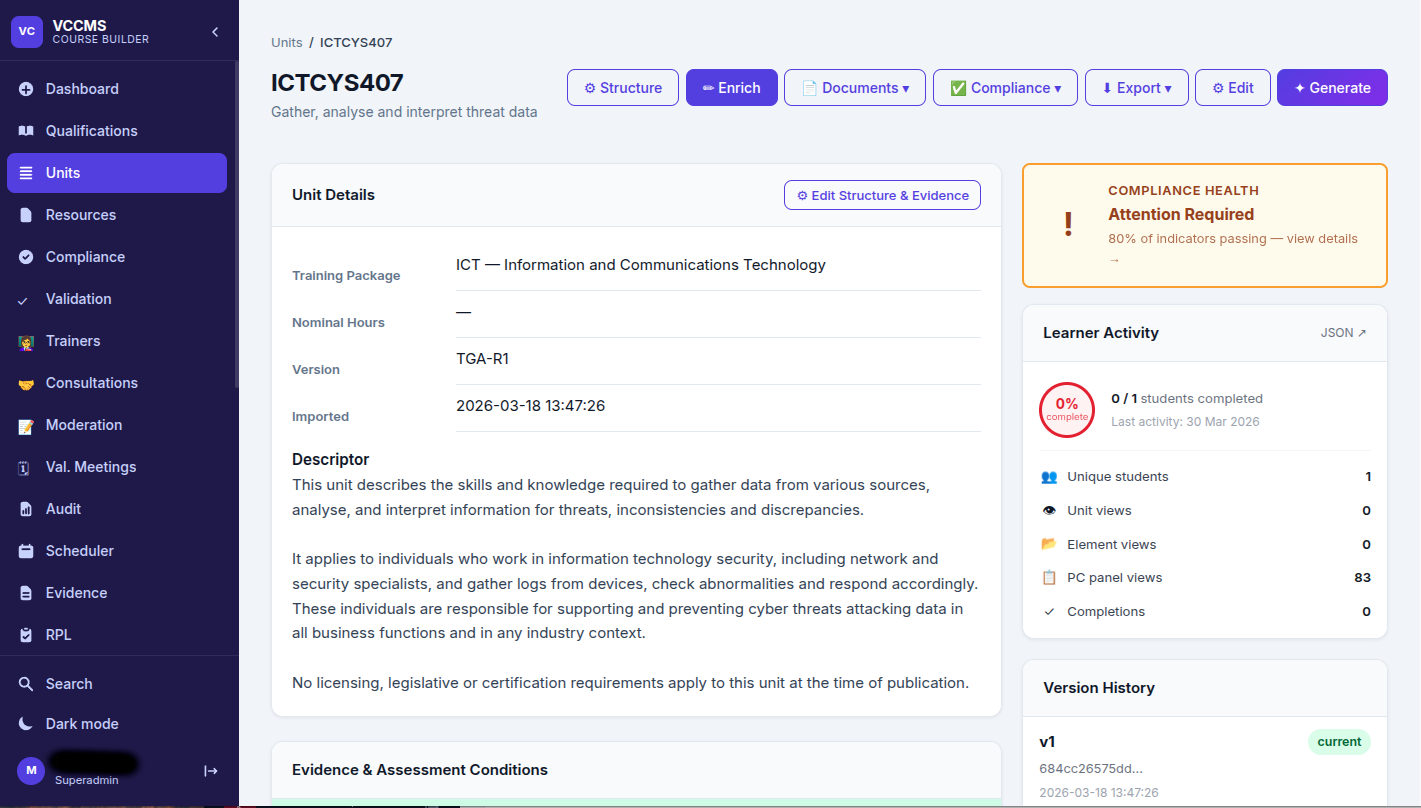
Click any unit code to open the unit page. This is the central hub for all unit-level work — enrichment, resources, compliance, documents, and validation all live here as tabs.
Authoring Enrichment Content
Enrichment is the curriculum developer's value-add layer. For each Performance Criteria you can author five types of content that contextualise the competency for students.
4.1 The Five Enrichment Fields
| Field | Purpose |
|---|---|
| Explanatory Text | A plain-language explanation of what the PC means and how it is demonstrated in practice. |
| Why This Matters | Industry context — why this competency is important and the consequences when it is not met. |
| Common Mistakes | Typical errors and misconceptions that learners make when developing this competency. |
| Industry Example | A real-world scenario or case study showing the PC in a genuine workplace context. |
| Workplace Scenario | An interactive or reflective scenario that puts the learner in a decision-making situation. |
4.2 Editing Enrichment
- Navigate to a unit and click the Enrichment tab
- Click any Performance Criteria row to expand it
- Each of the five fields has a Quill.js rich text editor
- Type or paste content — bold, italic, lists, and links are supported
- Click Save Draft to save without submitting for review
- Click Submit for Review when content is ready for administrator approval
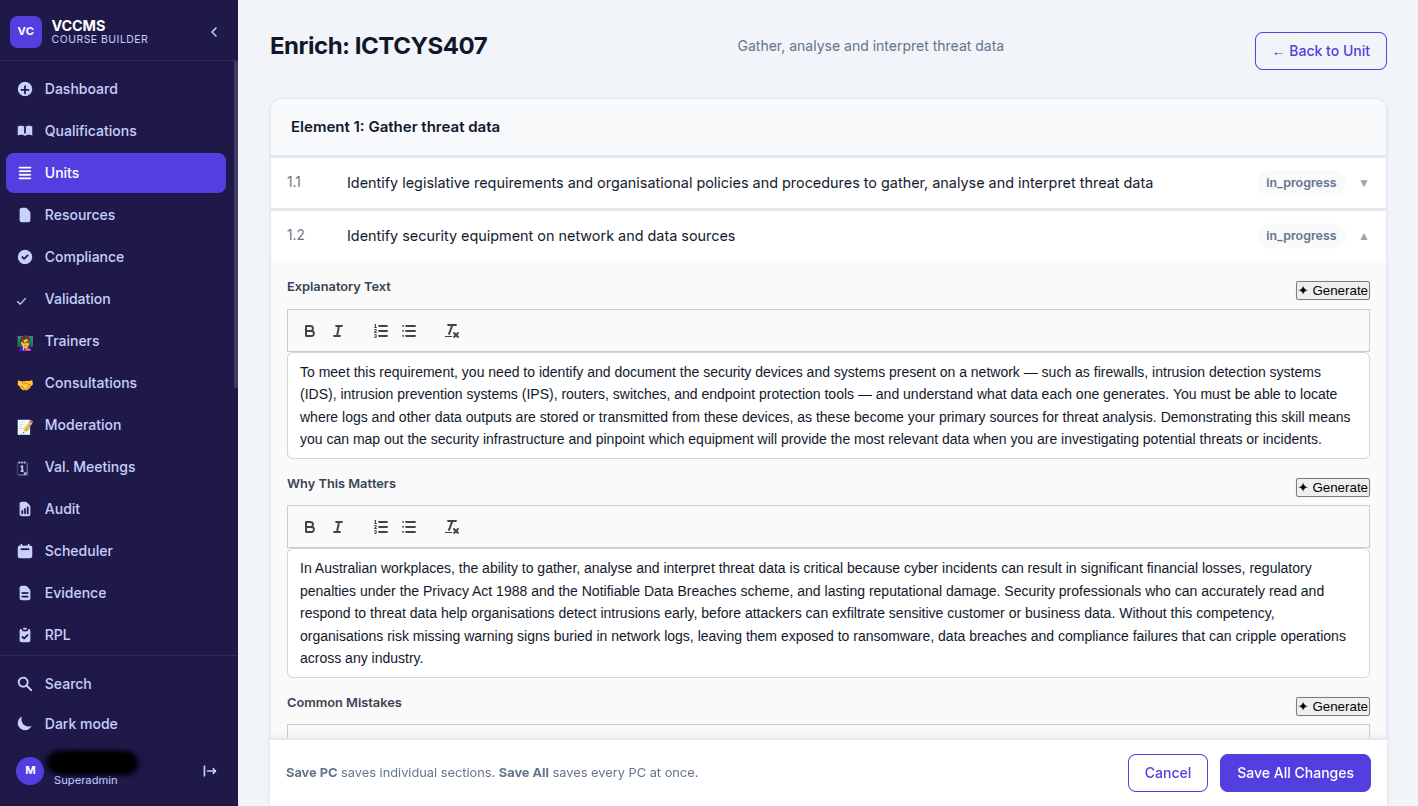
4.3 AI Content Generation
- Click Generate next to any field to generate content for that field only
- Click Generate All to generate all five fields in one pass (15–30 seconds)
- Review and edit all generated content — AI output is a starting point, not a final product
- Generated content is not automatically saved — click Save Draft to keep it
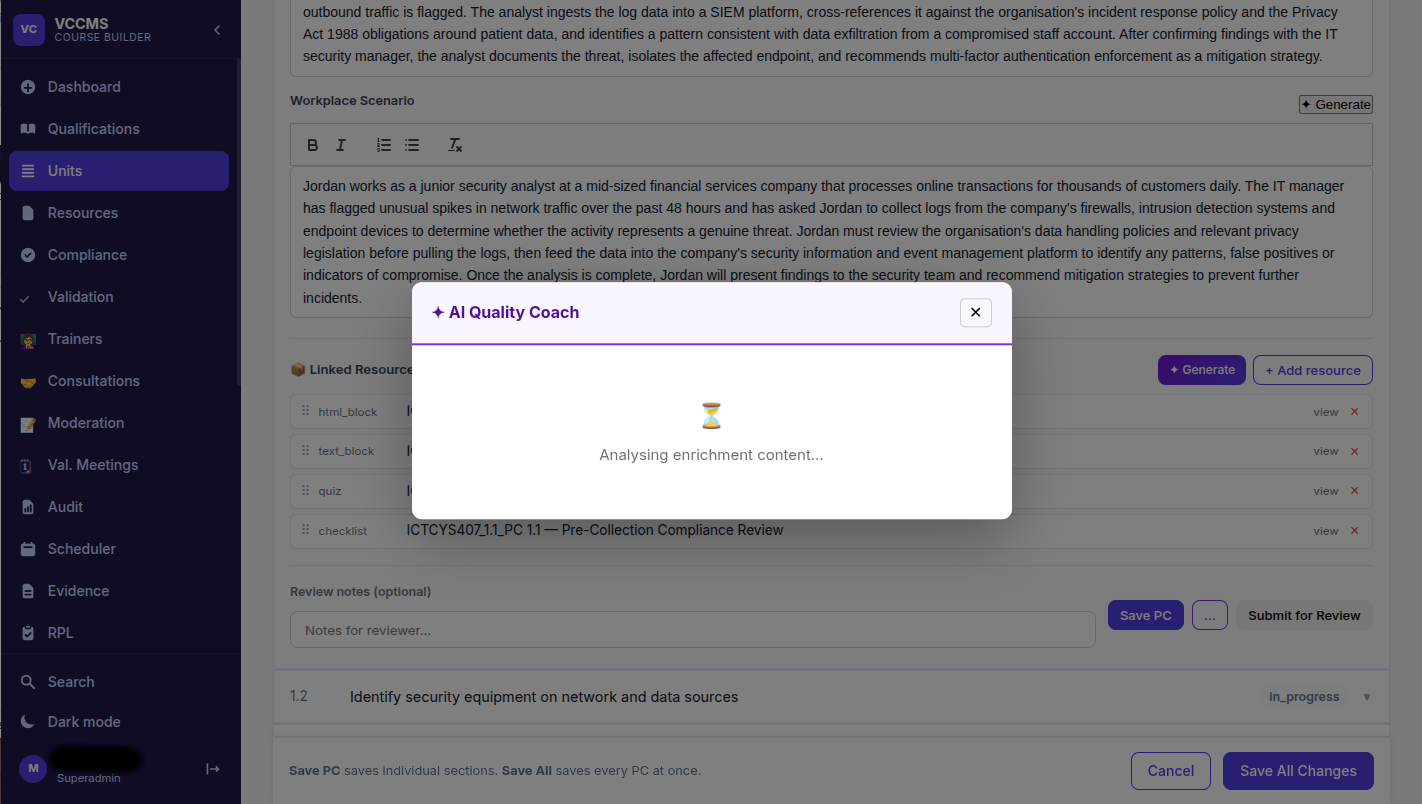
4.4 AI Quality Coach
The Quality Coach scores your enrichment against the PC text and returns a grade from A to F with specific feedback on strengths and areas for improvement.
- Click the ✦ Coach button on any PC row
- Wait 5–10 seconds for the AI to analyse your content
- Review the grade badge (A–F), strengths, issues, and suggestions
- Edit your content based on the feedback and re-run the Coach if needed
Resource Library
Resources are rich content items attached to individual Performance Criteria. They appear as interactive tiles in the student view — students click a tile to expand it and access the content.
5.1 Resource Types
| Type | Description |
|---|---|
| Text Block | Formatted text for definitions, background reading, or additional explanation. |
| HTML Block | Rich HTML content with full formatting, tables, and embedded media. |
| Image | Uploaded image with optional caption. Supported: JPG, PNG, GIF, SVG. |
| Video Embed | Embed YouTube, Vimeo, or other video by URL. Displays as a responsive player. |
| External Link | A labelled hyperlink to legislation, standards, or reference websites. |
| File Download | Upload a PDF, Word doc, or other file for students to download. |
| Quiz | Multiple-choice quiz with scoring, pass mark, and per-question feedback. Options are shuffled per student. |
| Exercise | Short-answer response fields. Responses are saved and can be reviewed by trainers. |
| Checklist | Completion checklist. Students tick each item and progress saves automatically. |
| Case Study | Structured case study with scenario, questions, and model answer reveal. |
| Reflection | Open-ended reflection prompt. Students write and save their personal response. |
| Scenario | Decision-point scenario with branching options and outcome feedback. |
| Slideshow | Multi-slide presentation with navigation controls. Supports text and images per slide. |
5.2 Creating a Quiz
- On the unit page, click the Resources tab
- Click + Add Resource and select Quiz
- Enter a title and set the pass mark percentage (default 80%)
- Click + Add Question for each question
- Enter the question text, then add 3–5 answer options
- Mark one option as correct using the radio button
- Optionally add feedback text to display after the student submits
- Drag questions to reorder, then click Save
Document Management
VCCMS manages three key compliance documents per unit: the Learner & Assessment Guide (LAG), the Training & Assessment Strategy (TAS), and Session Plans. All three are authored in the Builder with AI assistance and can be displayed in Moodle.
6.1 Learner & Assessment Guide (LAG)
The LAG is an 11-section document that explains to students how they will be assessed. When enabled by the teacher, it is visible to all Moodle users.
| Section | Content |
|---|---|
| Unit Overview | Summary of the unit's purpose and industry application. |
| Assessment Methods | How the unit will be assessed — observation, questions, portfolio, etc. |
| Evidence Requirements | What evidence the student must produce and to what standard. |
| Resources Required | Equipment, materials, and access the student needs during assessment. |
| Assessment Conditions | Environment, supervision, and time requirements. |
| Knowledge Evidence | Underpinning knowledge the student must demonstrate. |
| Performance Evidence | Observable skills and tasks the student must perform. |
| Reasonable Adjustment | How assessment is modified for students with additional needs. |
| Appeals Process | Student rights and the process for appealing an assessment outcome. |
| Re-assessment | Conditions and process for re-assessment if the student is Not Yet Competent. |
| Trainer Credentials | Qualification and currency requirements for the assessing trainer. |
- Navigate to a unit and click the LAG tab
- Click Create LAG or Edit LAG
- Fill in each of the 11 sections — click Generate for AI-assisted drafts
- Save as Draft, then Submit for Review when ready
- An administrator approves the LAG — it then becomes visible in Moodle
- Click Export PDF to download a formatted copy for records
6.2 Session Plans
- Click the Session Plans tab on the unit page
- Click + New Session Plan and give it a title and description
- Click + Add Session for each training session
- For each session: enter objectives, trainer activities, learner activities, and formative assessment
- Click Generate All to have AI draft all sessions from the unit elements and PCs
- Submit for approval when finalised — the plan then becomes available in Moodle
Compliance Management
VCCMS calculates a live compliance score for every unit based on 12 indicators. The Compliance Dashboard provides a split-view showing all units on the left and detailed indicator status on the right.
7.1 The Compliance Dashboard
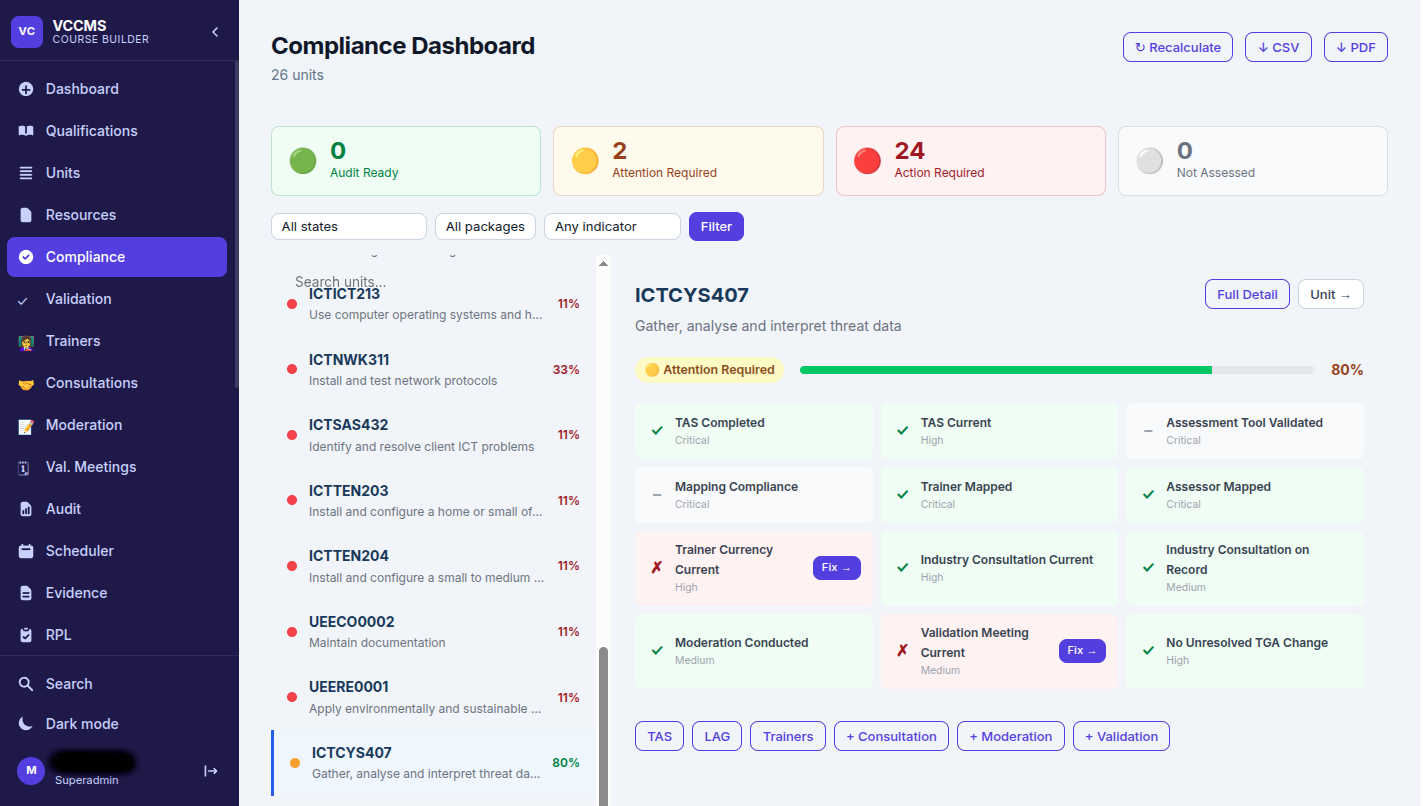
7.2 Compliance Indicators
| Indicator | What It Checks |
|---|---|
| Enrichment Complete | All PCs have approved enrichment content in all five fields. |
| LAG Approved | An approved Learner & Assessment Guide exists for this unit version. |
| TAS Current | An approved TAS exists and has not been flagged as outdated. |
| Trainer Mapped | At least one trainer with a deliver or both role is mapped to this unit. |
| Assessor Mapped | At least one trainer with an assess or both role is mapped to this unit. |
| Currency Valid | All mapped trainers have current (non-expired) currency evidence. |
| Validation Complete | The 3-stage validation pipeline has been completed for this unit. |
| Session Plans Exist | At least one approved session plan has been created. |
| Moderation Recorded | At least one moderation record exists for this unit. |
| Industry Consultation | At least one industry consultation record has been entered. |
| Evidence Linked | At least one Evidence Library item is linked to this unit. |
| No TGA Changes | No unreviewed TGA version changes are pending for this unit. |
7.3 Validation Workflow
Every unit must complete a 3-stage validation pipeline before it can be considered fully compliant. Completing Stage 3 automatically triggers a compliance score recalculation.
mod_vccms — Moodle Teacher Guide
The mod_vccms Moodle plugin displays enriched VCCMS unit content to students. Teachers add it to courses like any other Moodle activity and configure which elements, PCs, layout, and colour theme to use.
8.1 Adding a VCCMS Activity
- Turn editing on in your Moodle course
- Click + Add an activity or resource in the desired section
- Select VCCMS Unit from the activity chooser
- Search for the qualification and select the unit to display
- Configure display settings (see below)
- Click Save and display
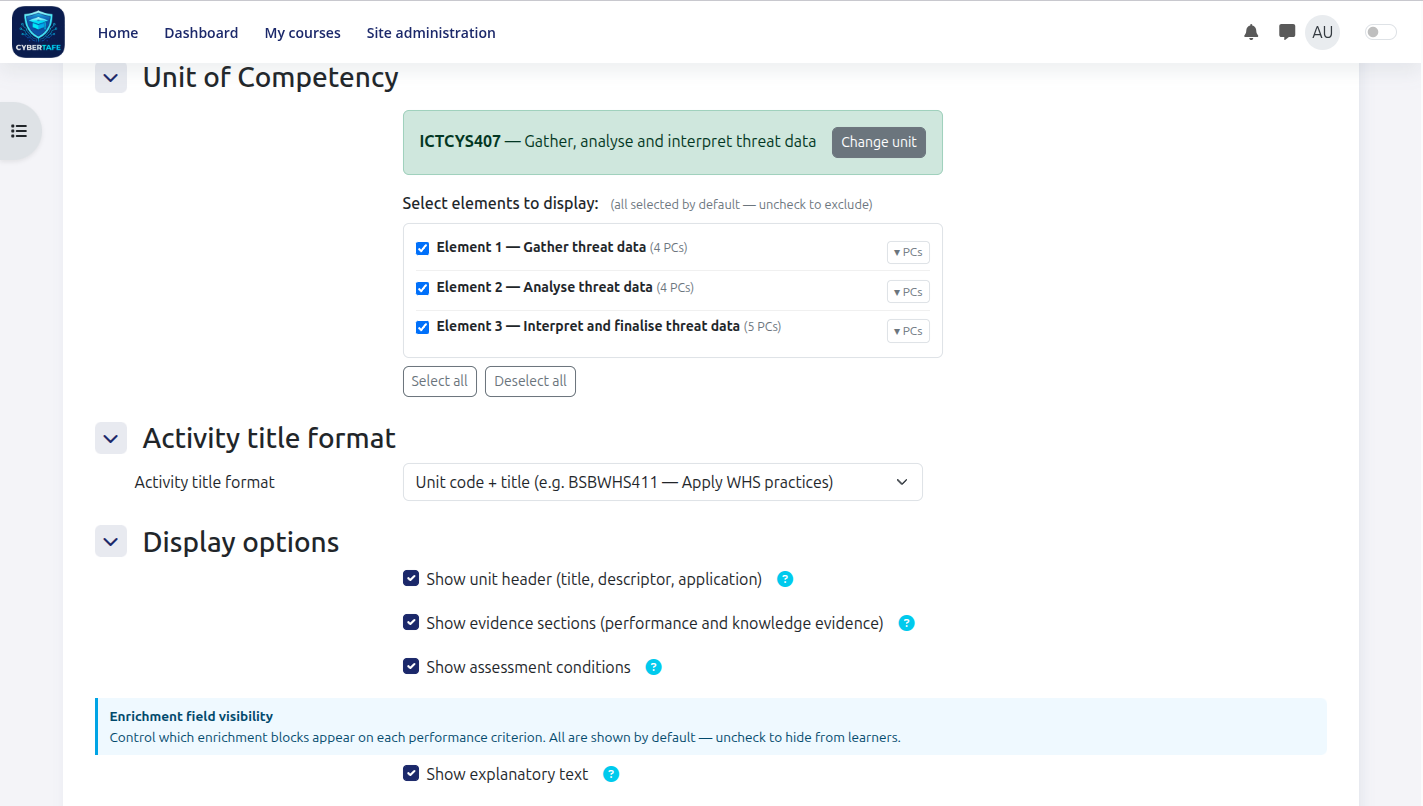
8.2 Element and PC Selection
By default all elements and Performance Criteria are displayed. You can exclude specific elements or individual PCs to tailor the unit for a particular cohort or course.
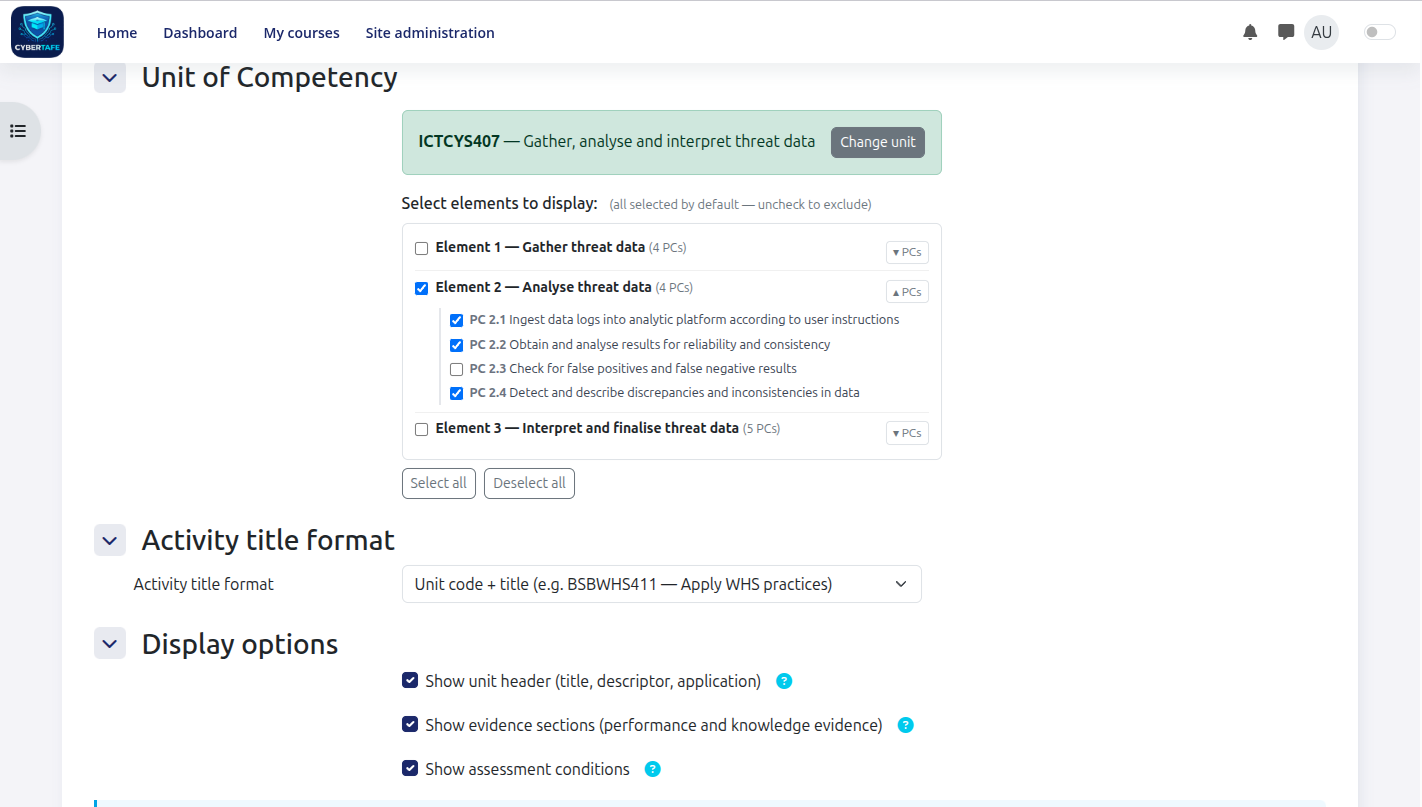
- Uncheck an element to exclude the entire element and all its PCs from the student view
- Click the ▾ PCs toggle to expand individual PC checkboxes for any element
- Uncheck individual PCs to exclude them while keeping the rest of the element visible
- Exclusions are saved per activity instance — different courses can show different subsets of the same unit
8.3 Layout and Theme Settings
| Layout Option | Description |
|---|---|
| Accordion (elements) | Elements collapse and expand. Students click a header to open it. Suitable for long units. |
| Fullpage (elements) | All elements always open. Students scroll through the full unit. Suitable for shorter units. |
| Tabs (PCs) | PCs shown as numbered tabs (e.g. 1.1, 1.2). One panel is visible at a time. This is the default. |
| Accordion (PCs) | PCs collapse individually. Students can open multiple PCs simultaneously within an element. |
8.4 Colour Themes
Four colour themes are available to match your faculty or Moodle branding.
Navy & Blue
Green & Teal
Neutral Grey
Amber & Terracotta
Student Experience in Moodle
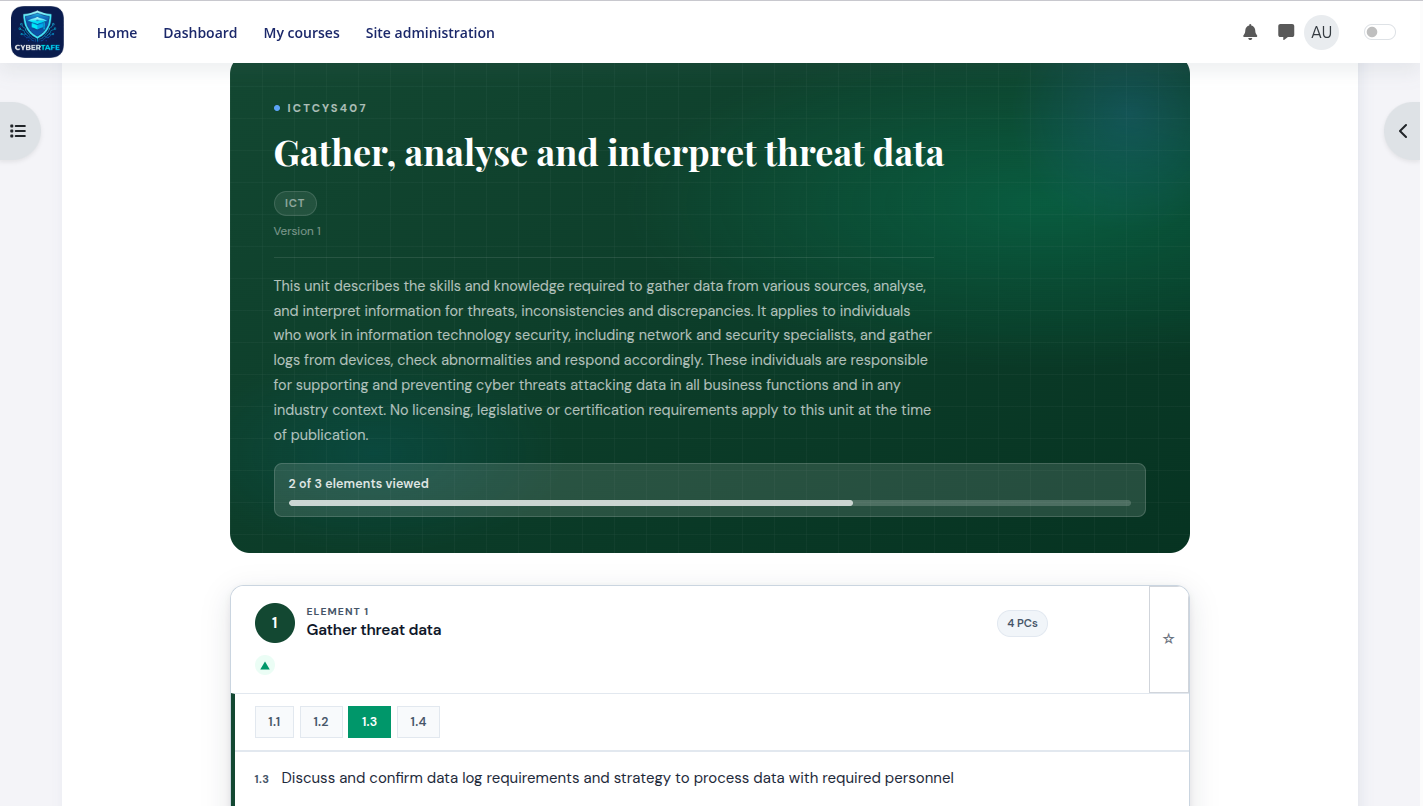
Students access VCCMS content through the standard Moodle course page. The unit displays in a modern, accessible interface designed for self-paced VET learning with built-in progress tracking.
9.1 The Unit View
9.2 Navigation and Progress
| Feature | Description |
|---|---|
| Progress Bar | Shows how many elements have been viewed. Updates automatically as you navigate. |
| Resume Button | Remembers your last viewed element and provides a one-click return on your next visit. |
| Element Tiles | Numbered circles at the top of the unit. Viewed elements show a tick (✓). Click any tile to jump to it. |
| Time Estimates | Each element shows an estimated reading time based on content length. |
| Keyboard Navigation | Press [ and ] (bracket keys) to move between elements without using the mouse. |
| Completion Banner | When all elements are viewed, a green completion banner appears once per student per unit. |
9.3 Bookmarks and Personal Notes
- Click ☆ on an element header to bookmark the element — the icon turns gold (★) when bookmarked
- Click ☆ on any PC action bar to bookmark that specific PC
- Click ✎ My Note on any PC to expand a personal notes text area
- Notes save automatically as you type — no save button is needed
- Both bookmarks and notes sync to the VCCMS server — available on any device
- Notes are private — only you can see them
9.4 Mark Done
Students can mark individual PCs as done using the ✓ Mark done button. This is a personal tracker stored in the browser and does not affect Moodle completion or assessment outcomes.
9.5 Interactive Resources
Quizzes
- Select your answer for each question — options are shuffled to prevent pattern guessing
- Click Submit Quiz when all questions are answered
- Your score, pass/fail result, and per-question feedback appear immediately
- Click Retake Quiz to clear answers and try again
- Your last submitted score is saved and shown on your next visit
Exercises
- Type your response in the provided text area and click Submit Exercise
- Submitted responses are saved and can be reviewed by your trainer
Checklists, Reflections, and Scenarios
- Checklists save progress automatically as you tick each item
- Reflections and Scenarios auto-save as you type — there is no submit button
- All responses are stored in the VCCMS system and persist across sessions
Administration
10.1 User Management
- Navigate to Users in the Builder navigation
- Click + New User to create an account
- Enter name, email, and assign a role
- The user receives a password reset email to set their own password
| Role | Capabilities |
|---|---|
| Admin | Full access to all Builder features — user management, API keys, approvals, and audit export. |
| Developer | Authors enrichment, resources, LAGs, and session plans. Can submit but not approve content. |
| TAS Editor | Focused access to create and edit the Training & Assessment Strategy documents. |
| Reviewer | Read-only access with ability to view content currently in review. |
| Read Only | View-only access to all content. Cannot create, edit, or approve anything. |
Per-User Permission Overrides
Administrators can grant or deny individual permissions on top of a user's role via the user edit page. The permission matrix shows each permission's source:
10.2 API Keys
- Navigate to Settings > API Keys in the Builder
- Click + Generate New Key — copy it immediately (shown only once)
- In Moodle: Site Administration > Plugins > Activity Modules > VCCMS
- Paste the key into the API Key field and click Test Connection
- A green Connected status confirms the link is working
10.3 TGA Version Monitoring
- A ⚠ Changes button appears in amber on any unit where TGA has updated the content
- Click View Diff to see colour-coded changes: green = added, red = removed, amber = modified
- Diffs are shown at element and PC level with field-level changes displayed side by side
- Take appropriate action — update TAS, notify trainers, check cohort impacts
- Click Dismiss to clear the flag once the review is complete
Quick Reference
11.1 New Unit Workflow
| # | Step | Action | Who |
|---|---|---|---|
| 1 | Import Qualification | Import from training.gov.au. All units and PCs are fetched automatically. | Admin / Developer |
| 2 | Author Enrichment | For each PC: write or generate all 5 enrichment fields. Use Quality Coach to score. | Developer |
| 3 | Add Resources | Attach quizzes, exercises, videos, files, and case studies to relevant PCs. | Developer |
| 4 | Submit for Review | Click Submit for Review. Status changes to In Review. | Developer |
| 5 | Approve Content | Administrator reviews and approves. Status changes to Published. | Admin |
| 6 | Author LAG | Create the Learner & Assessment Guide. Draft with AI, submit, and approve. | Developer / Admin |
| 7 | Author TAS | Create or update the Training & Assessment Strategy. Submit and approve. | Developer / Admin |
| 8 | Validation | Complete 3-stage pipeline: Internal Review → Industry Validation → Sign-Off. | Admin |
| 9 | Map Trainers | Assign qualified trainers and assessors. Upload current currency evidence. | Admin |
| 10 | Add to Moodle | Teacher adds VCCMS activity, selects elements/PCs, sets layout and theme. | Teacher |
11.2 Keyboard Shortcuts
| Key | Action |
|---|---|
| [ | Navigate to the previous element in the student view |
| ] | Navigate to the next element in the student view |
| Tab / Shift+Tab | Move focus between interactive controls |
| Enter / Space | Activate the focused button or toggle an accordion panel |
| Escape | Close any open modal (LAG, TAS, Session Plan viewer) |
11.3 Glossary
- AQF
- Australian Qualifications Framework — national policy for regulated qualifications in Australia.
- ASQA
- Australian Skills Quality Authority — national regulator for vocational education and training.
- Element
- A major component of a unit of competency describing a key function or skill area.
- Enrichment
- The developer's value-add content layer — explanations, examples, and scenarios per PC.
- LAG
- Learner & Assessment Guide — explains to students how they will be assessed.
- PC
- Performance Criteria — specific observable behaviours that demonstrate competency within an element.
- RTO
- Registered Training Organisation — delivers nationally recognised training under ASQA registration.
- TAS
- Training & Assessment Strategy — the RTO's documented plan for delivering and assessing a unit.
- TGA
- training.gov.au — the national register of vocational education and training in Australia.
- Track 1
- A regulatory unit update from TGA — requires immediate review and action.
- Track 2
- An enrichment update published by a developer — informational only.
- Unit
- A discrete qualification component describing a specific workplace skill or function.
- Validation
- The process of reviewing assessment tools for validity, reliability, and compliance.
- VCCMS Builder
- The standalone PHP web application for curriculum developers and administrators.
- mod_vccms
- The Moodle activity plugin that displays VCCMS content to teachers and students.